Rhythm design / Technical analysis
How rhythm games connect music, input and hit detection
A right-hand target is due at 2 seconds into the music. The player presses at 2.03 seconds. Which note receives that input, and what does the game show? Starting with the difference between targets and feedback in game screenshots, this guide follows one tap through the music timeline, chart, input handling, hit detection and feedback.
Article summary
- Trace target selection and timing-error calculation in sequence.
- Allow a preparation interval when a note needs to appear before the music starts.
- Record input requests and target states so that each action produces one result.
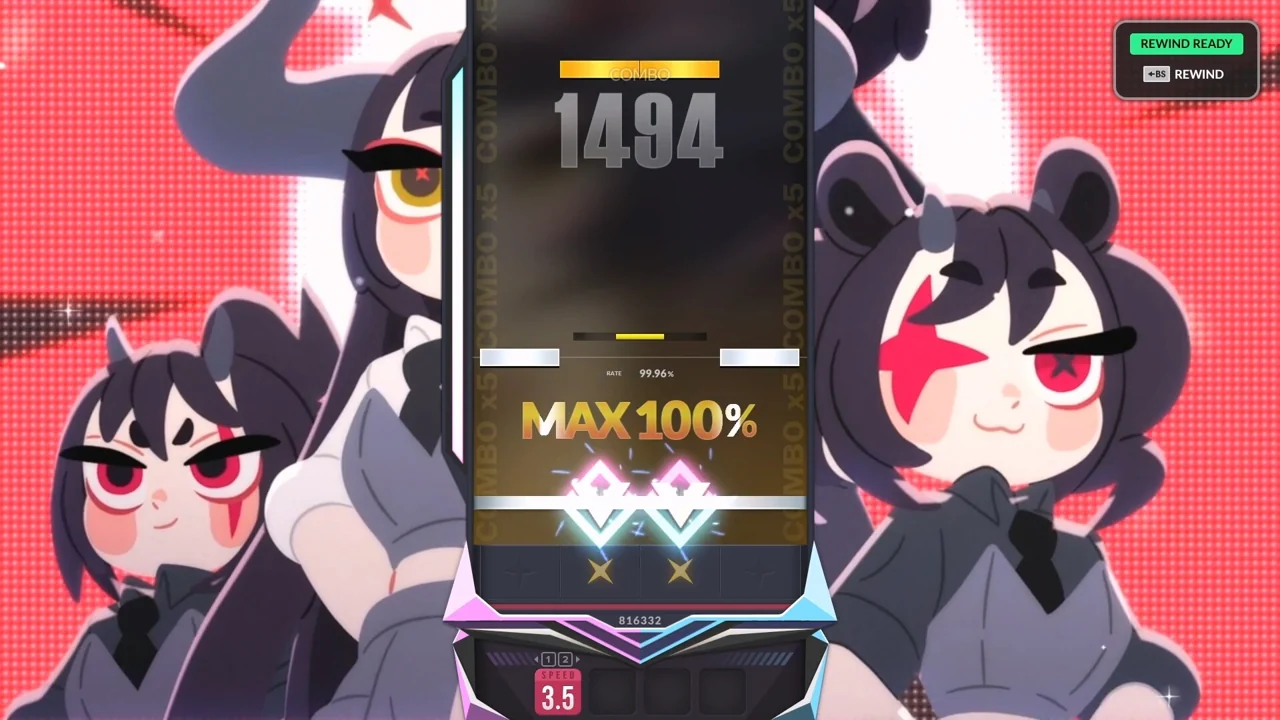
DJMAX RESPECT V · Official PC screenshot
The hit line sits at the bottom of the central lanes, alongside the MAX 100% and combo readouts. This screenshot shows where players read upcoming targets and where results appear. The calculations below use a separate learning model.
Image credit: NEOWIZ / Steam · Source page ↗ · Original image ↗
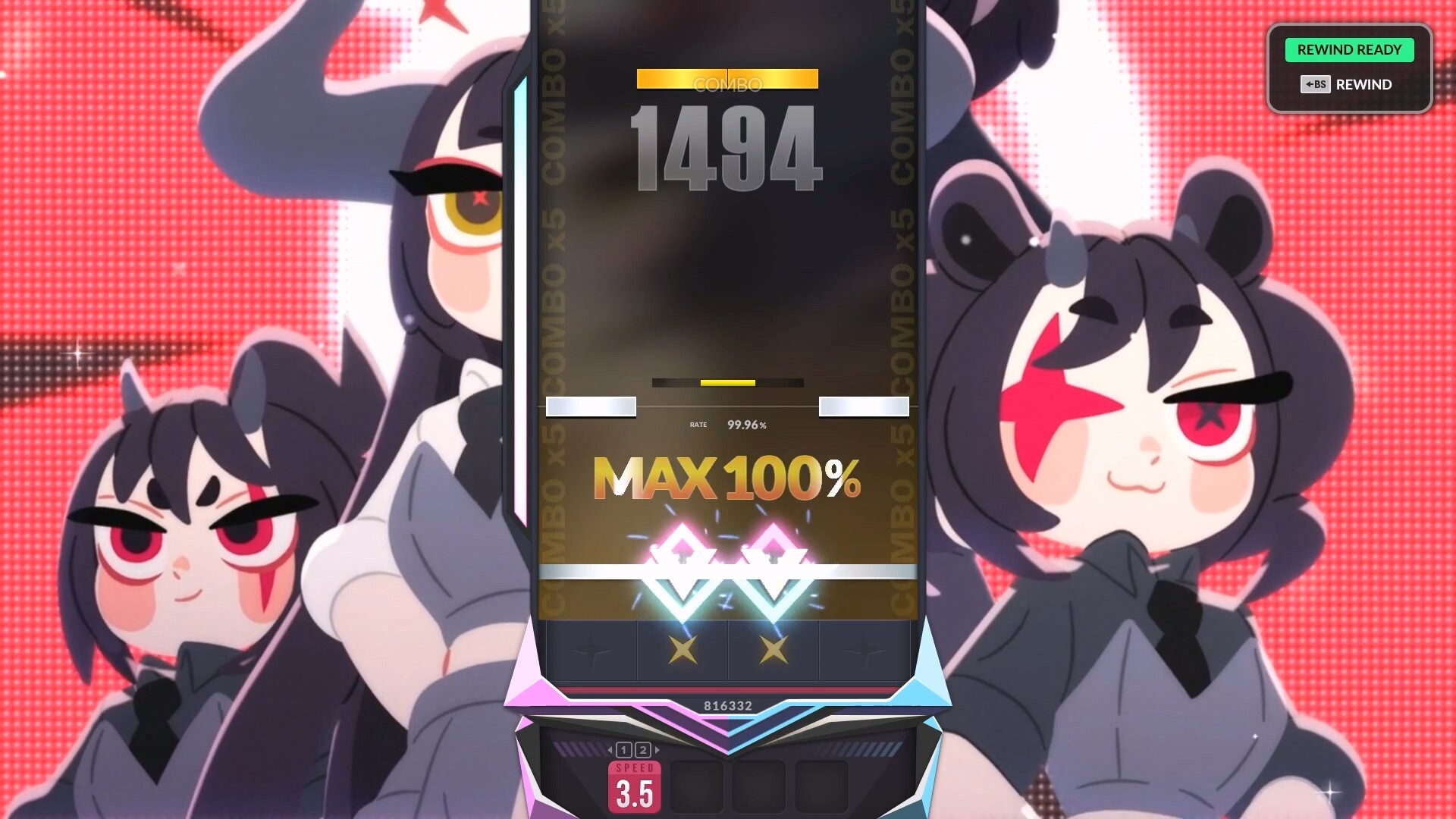
Trace five components through a single tap
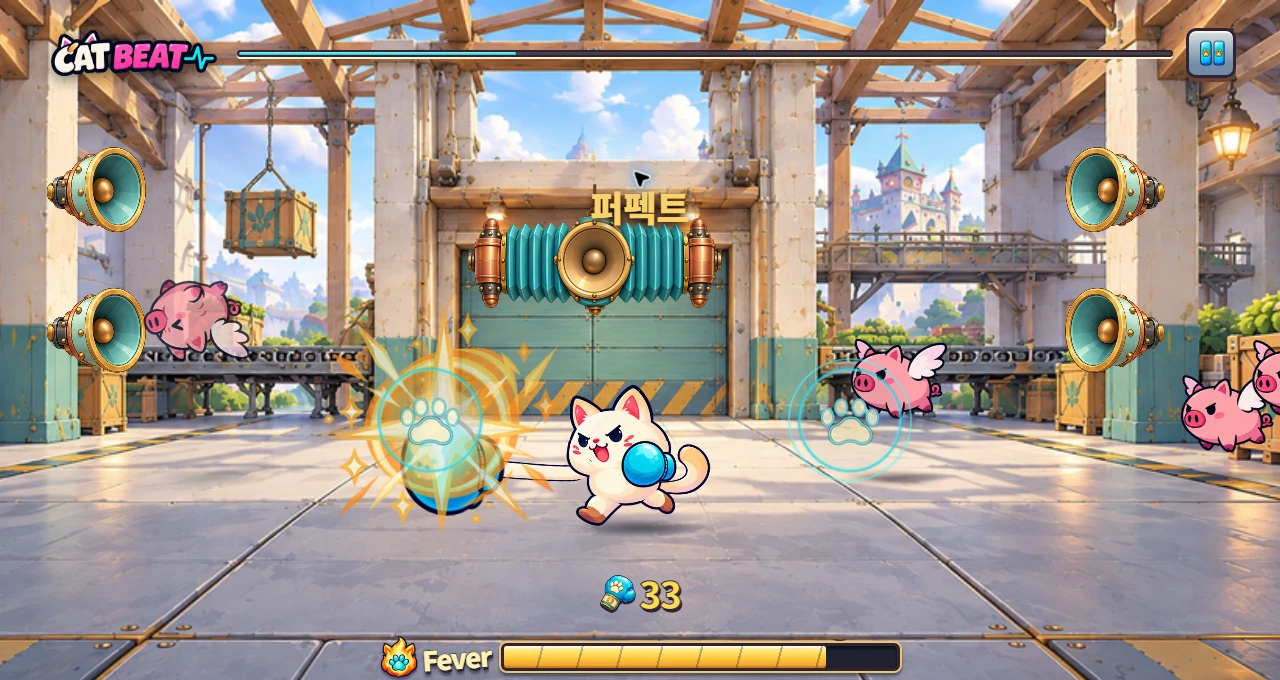
DJMAX's lanes and lower judgment line, and the left and right markers in CAT BEAT's boxing mode, indicate where and when to act. Judgment text and combos show the result after input. Even within one screen, targets and results carry different information.
Follow the editorial single-tap example. Right-hand target A is scheduled at 2.000 seconds in the music file, and the input arrives at 2.030 seconds. Select an unprocessed target with the matching direction, then compare the times: the input is 30 ms late. With an illustrative hit window of 80 ms on either side, finalize A as a hit and display the result.
How an input at 2.030 seconds becomes target A's result
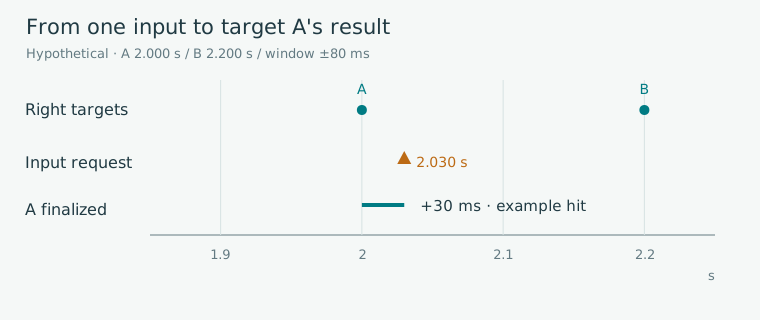
Editorial diagram · A hypothetical right-hand single-tap trace: target A=2.000 s, input=2.030 s, error=+30 ms.
Horizontal axis: music-file position (seconds). Rows: target, input and processing result. Circle=target; triangle=input.
On smaller screens, scroll the diagram horizontally. Enlarge diagram ↗
Values and sequence shown in the diagram
- Match direction → select pending candidate A → calculate +30 ms → hit within the example window → finalize A
Separate musical beats from play targets
A recording contains instruments, melody, accents and rests. The chart decides which sounds become which actions. Even when every beat has a sound, players may be asked to press on only some beats. This distinction supports multiple difficulty levels for the same song.
The public osu! file format also separates tempo and meter in TimingPoints from target timestamps in HitObjects. Following that distinction, the example stores note_id, target seconds relative to the music file, direction and processing state. Values used for judgment are recorded separately from screen coordinates.
Related primary sources: osu! · Timing points / Hit objects ↗
Five records connected to one action
| Component | Value in the example | Next step |
|---|---|---|
| Music | Reference at file position 2.000 s | Selected sound |
| Chart | A · right · 2.000 s | Target candidate |
| Input | Right · 2.030 s | Input timestamp on the same timeline |
| Hit detection | A selected · error +30 ms | A finalized |
| Feedback | Hit display and impact response | Prepare the next target |
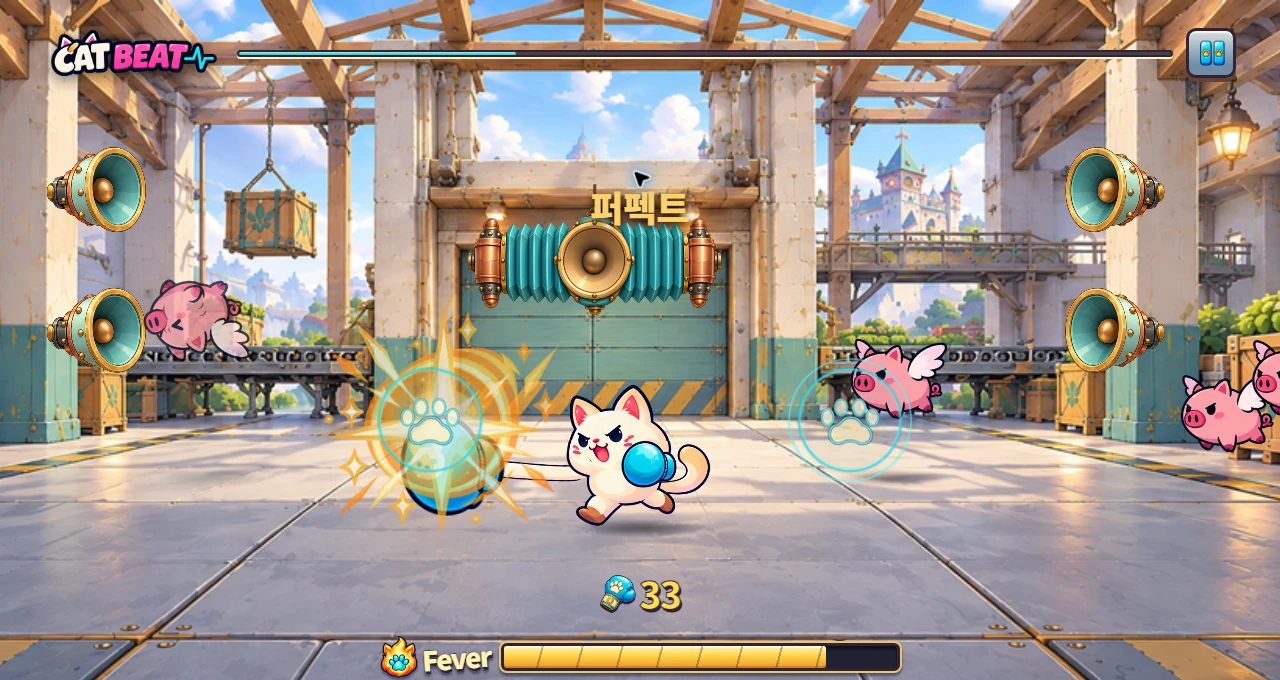
CAT BEAT : Wake the Beat · Development screenshot
The paw markers on the left and right, incoming targets and Perfect text show how information is arranged in this development build. The game's actual timing tolerance is separate from the hypothetical value used here.
Image credit: Level Up Today · Source page ↗ · Original image ↗
Calculate how early a note must appear
If a note is due at 1.0 second in the music and takes 2.0 seconds to travel across the screen, it must appear at −1.0 second. When music starts at zero, the game needs a preparation interval. Specify whether that interval runs before playback or whether silence is added before the song and the chart's time origin moves accordingly.
If current music position is t, target time is T and lead time is L, the remaining time is T−t and travel progress is (t−(T−L))/L. Clamp the displayed value to 0–1. Keep target times in the chart and recalculate the display from the same music position. Frame rate changes display frequency while target seconds remain fixed in this example.
A preparation interval beginning at −1 second
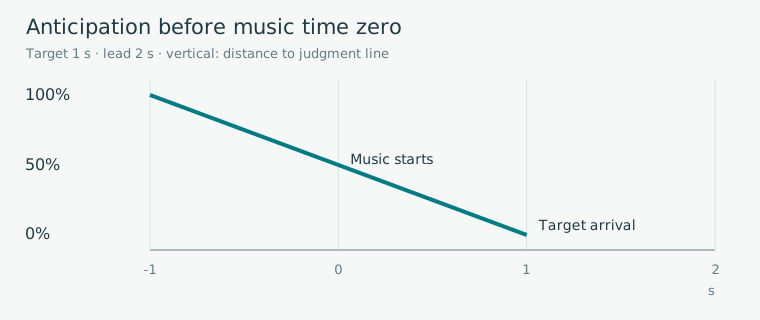
Editorial diagram · Hypothetical screen travel with a target at 1 second and a 2-second lead. Display begins before music time zero.
Horizontal axis: music position, −1 to 2 seconds. Vertical axis: distance remaining to the judgment line (%).
On smaller screens, scroll the diagram horizontally. Enlarge diagram ↗
Values and sequence shown in the diagram
- Appears at −1 s: 100%
- Music time 0 s: 50%
- Target at 1 s: 0%
Decide which note to compare first
For pending targets A=2.000 seconds and B=2.200 seconds in the same direction, an input at 2.030 seconds is +30 ms from A and −170 ms from B. A is the only candidate within this example's ±80 ms window. Overlapping windows require an additional selection policy, such as the nearest or earliest target.
Put input timestamps and target times on the same music timeline, then calculate error e=input−target. Specify the direction check, candidate search, note selection, timing check and final state update in order. A result can then be traced back to the step that produced it.
Apply each action's result once
Mark A as processed after a hit. Finalized notes are excluded from the candidate list, even if the same input arrives again. Convert keyboard and pointer events into a shared action-request format, with identifiers and processing paths recorded for each input.
Pointer Events describes situations in which pointer actions can be accompanied by compatibility mouse events. Implementations with multiple event subscriptions should check whether one action produces two requests. Hold notes and simultaneous inputs extend the design with separate start, sustain and release or grouping policies.
Related primary sources: W3C · Pointer Events compatibility mouse events ↗
Processing log for the single-tap example
| Event | Input / target | Finalized result |
|---|---|---|
| Input received | Right · 2.030 s · request ID | One action request |
| Select target | A 2.000 s / B 2.200 s | Pending A within the window |
| Calculate timing error | (2.030−2.000)×1000 | +30ms |
| Update note state | A: pending → hit | Increment hit count once |
| Duplicate delivery | Same request ID or finalized A | End without applying another result |
Use the symptom to guide the investigation
If one input adds to the score twice, inspect input requests and target states. If timing drifts over time, inspect the playback origin, speed, loop length and resume basis. For visual–audio misalignment, inspect display position, output path and input records separately.
Feedback needs to communicate the last input while keeping the next target's shape and direction readable. Record the build, device, audio output hardware and event times, then follow calculation checks with listening and input tests.
Sources & scope
Sources reviewed 2026.10.17: Timing points and Hit objects in the osu! file format, and compatibility events in Pointer Events. Game screenshots support observation of displayed elements. The 2-second target, 2.03-second input, ±80 ms window, state handling and movement equation belong to an editorial single-tap learning model. Commercial games' internal judgments and actual device latency require evidence from their respective implementations and executions.