Music production / Music guide
Choosing tempo and loop length for game music
The actions a scene asks players to perform help determine its tempo. This guide starts with that task, calculates the duration of 16 beats and compares tempos using synthesized audio with the same arrangement.
Article summary
- Define the beat unit and number of repeating bars first.
- Keep the arrangement and volume fixed when comparing tempos.
- Check background music, essential cues and input sound effects together.
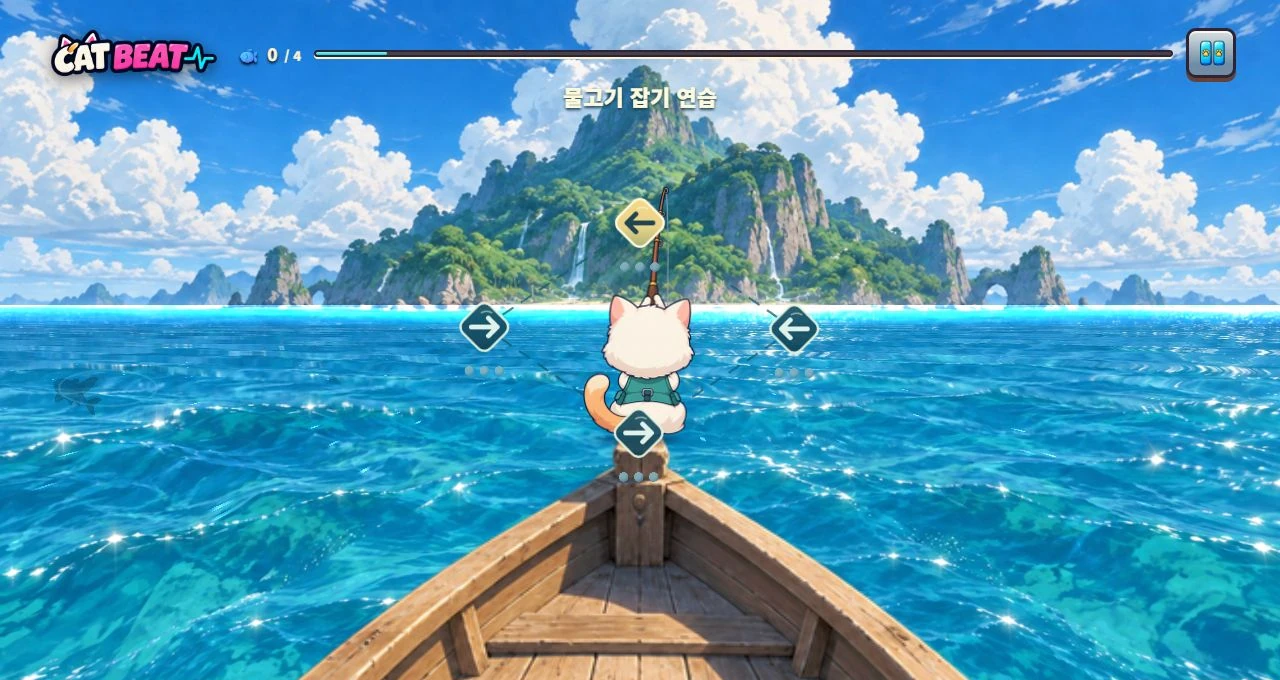
CAT BEAT : Wake the Beat · Development screenshot
Fishing-mode markers and input guidance in a development build. The screenshot shows the player's task; the audio examples illustrate musical arrangement separately.
Image credit: Level Up Today · Source page ↗ · Original image ↗
Define music's role through the player's task
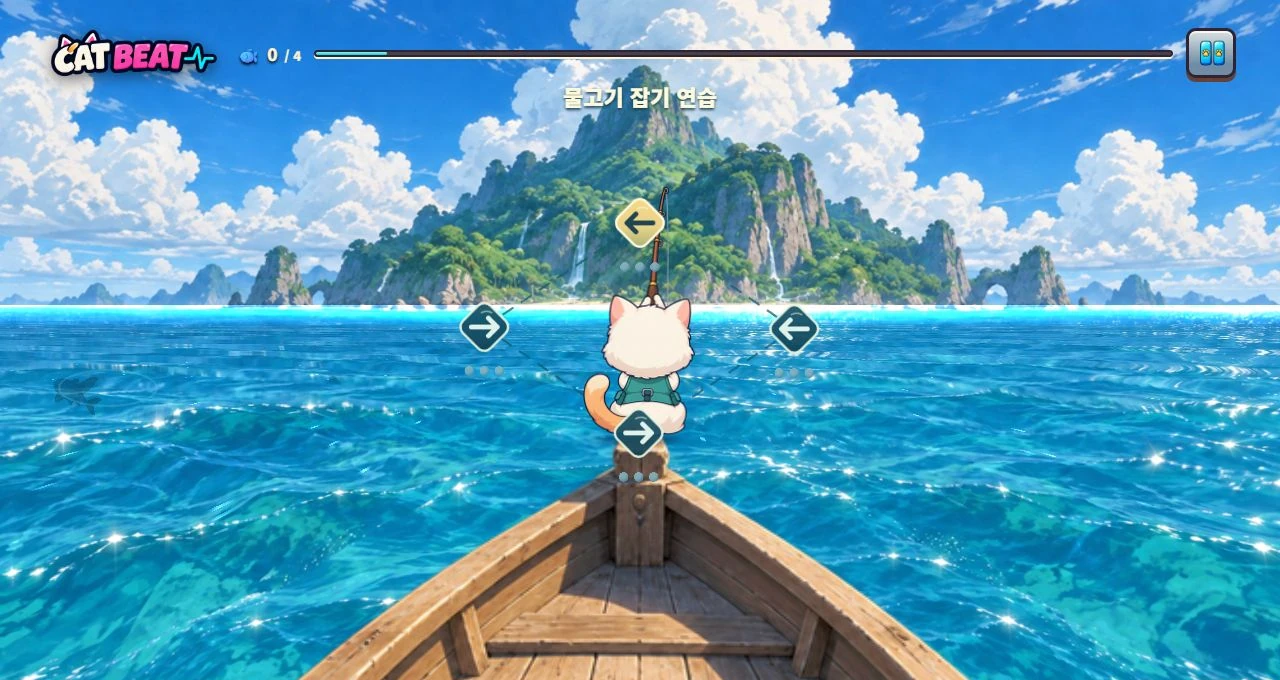
CAT BEAT's fishing screen presents cues and input timing; its fever screen emphasizes consecutive inputs and their results. Start by describing the action, then decide which sounds support the waiting period, cue an essential input or confirm a press. Screenshots show actions and displays. To examine the actual arrangement, use recordings and observations from the running game.
Give the scene, player action, essential audio cue and repeating music segment a line each in the production brief. For a task where players listen for two beats and respond over the next two, establish the listening cue first. Add decorative instruments at levels and frequencies that keep it easy to hear.
Calculate the beat unit and loop length
Here, the assumption is fixed-tempo 4/4 with a quarter note counted as one beat. One beat is 60/BPM seconds; four bars are 16×60/BPM seconds. At 100 BPM this is 9.6 seconds, at 120 BPM 8 seconds, and at 140 BPM approximately 6.857143 seconds. For songs with tempo changes or introductions, record the origin of each relevant segment separately.
Ableton's introductory lessons move from a steady beat to tempo and groups of four beats. Fix those units before calculating duration. Alongside the BPM value, listen to all 16 beats and mark how many actions the game will ask the player to perform.
Related primary sources: Ableton · Beat and tempo ↗ · Ableton · Bars ↗
Quarter-note beats: four bars of 4/4
| BPM | One beat | 16 beats |
|---|---|---|
| 100 | 0.600 s | 9.600 s |
| 120 | 0.500 s | 8.000 s |
| 140 | Approx. 0.428571 s | Approx. 6.857143 s |

CAT BEAT : Wake the Beat · Development screenshot
The fever layout emphasizes consecutive inputs and rewards. Assessing its instrumentation, tempo and feel requires listening as well as looking at the screen.
Image credit: Level Up Today · Source page ↗ · Original image ↗

Hear the same 16 beats at three tempos
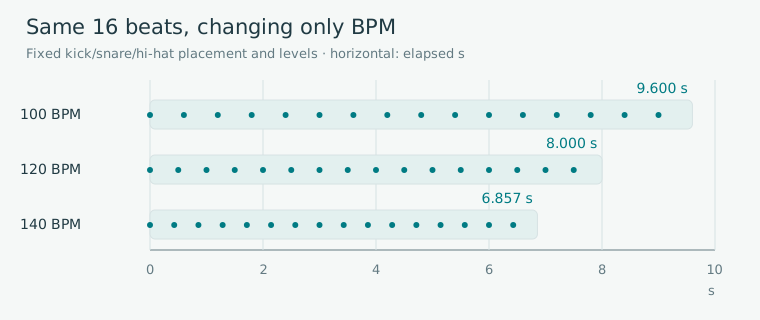
Editorial diagram · An original example changing only BPM while holding instruments, arrangement and synthesized levels fixed.
Horizontal axis: elapsed time, 0–10 seconds. Three rows: the 16-beat interval at each BPM.
On smaller screens, scroll the diagram horizontally. Enlarge diagram ↗
Values and sequence shown in the diagram
- 100 BPM: 9.6 s
- 120 BPM: 8 s
- 140 BPM: approx. 6.857143 s
100 BPM · Same arrangement
120 BPM · Same arrangement
140 BPM · Same arrangement
Keep the arrangement fixed while comparing tempos
The comparison files below use the same 16-beat pattern: kick on beats one and three, snare on beats two and four, and hi-hat every half beat. Synthesis and instrument levels are fixed; only BPM changes. Listen in sequence at the same output volume, then compare with an input task added. These illustrative synthesized drums are provided separately from the game's soundtrack.
The existing resource-library files at 100, 120 and 140 BPM also differ in snare and hi-hat placement. They illustrate different arrangements. Examining the effect of tempo alone calls for a controlled comparison like the one below.
Separate musical density from the number of inputs
Within one bar at 120 BPM, the hi-hat may sound eight times while input targets appear only on beats one and three. A version with targets on all four beats then changes the action count while retaining the music. Record input count, directions, lead time and judgment window together.
Before adding an instrument, check whether it competes with an essential cue. Compare the cue on its own, with background music, then with background music and impact effects. Note which sounds become masked and when. Test through the actual device's audio output while observing play to choose a combination players can follow.
Three stages for checking an essential cue
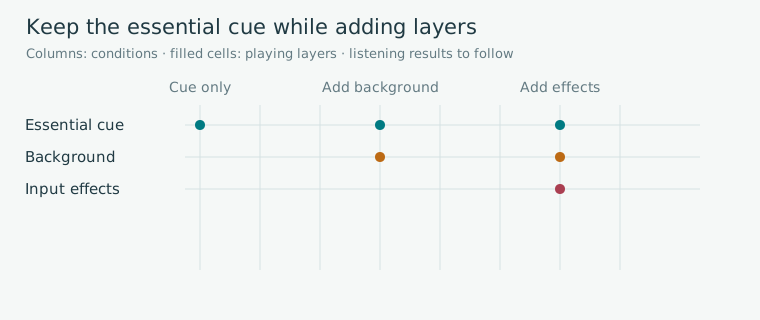
Editorial diagram · A comparison design that preserves the cue while adding background and input effects in sequence. Record actual listening results after performing the test.
Columns: comparison sequence. Rows: cue, background and input effects. Filled cells indicate layers to play.
On smaller screens, scroll the diagram horizontally. Enlarge diagram ↗
Values and sequence shown in the diagram
- Cue alone → background + cue → background + cue + input effects
Check file length in whole frames
The comparison files are 48,000 Hz mono PCM. At 120 BPM, 8 seconds is 384,000 frames. At 140 BPM, 16 beats are approximately 329,142.857 frames, rounded to 329,143. Verify duration by dividing the frame count by the sample rate. Record this small rounding separately from the song's beat origin.
After calculating the bar length, inspect the reverb tail and the waveform at the loop boundary. A file can have the expected duration and still need repeated listening for seams or changes in tone. Record playback conditions when evaluating the synthesized examples and supported devices.
Try the scene, then record why a track fits
Record each candidate's BPM, pattern, duration, level and audio output device, then try the same task. Note missed cues, input intervals and retries. Record players' descriptions of the music's feel separately, in their own words.
Choose between candidates after checking cue clarity, loop seams, peaks when effects overlap and behavior after interruptions. Assess how the background tempo relates to difficulty alongside the target pattern and observations of play.
A record for selecting candidates
| Fixed conditions | Variable condition | Observation record |
|---|---|---|
| Same input targets, device and volume | Change BPM only | Missed-cue times and input intervals |
| Same BPM, pattern and effects | Add background layers | Positions of masked cues |
| Same file and loop boundaries | Output device | Perceived seam and resume state |
Sources & scope
Sources reviewed 2026.10.17: Ableton's explanations of beats, tempo and bars. The 16-beat calculations, input tasks and controlled comparisons are editorial learning models. The new WAV files use original mathematical synthesis; their structure and duration were checked automatically. Listening and physical-device evaluation results are recorded separately.